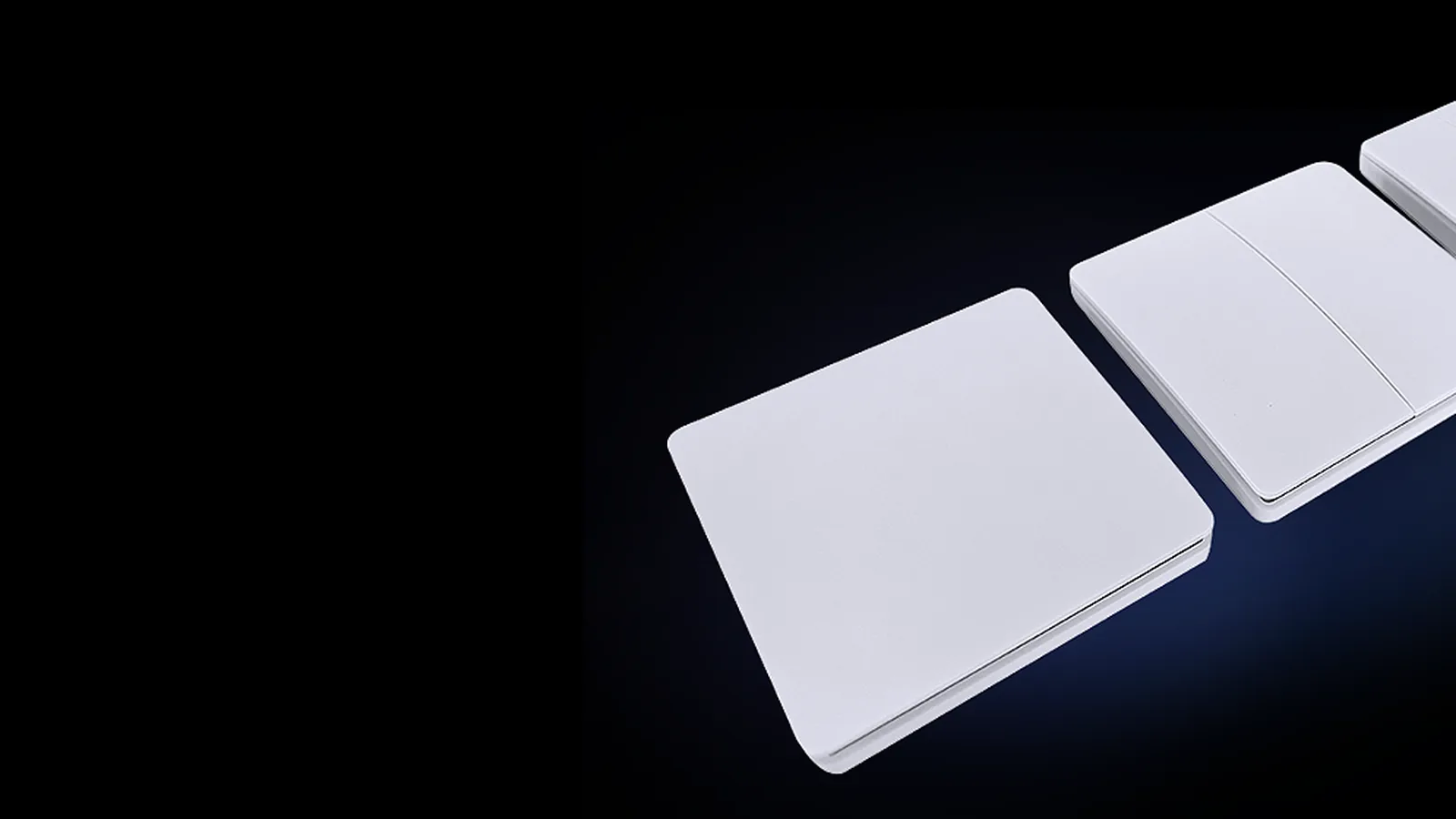
Smart devices such as Kinetic RF switches, smart downlights, smart plugs and WiFi controllers are set to work on the 2.4 GHz WiFi frequency and will not connect or work on 5GHz. This guide explains why that is, how to tell the two bands apart on your router, and how to change your network settings so your smart devices link first time.
Even though 2.4 GHz carries less information than 5 GHz, it has better range and passes through walls and ceilings more easily, which is why smart lighting manufacturers build their products around it. The problem is that many newer routers come with simultaneous 5 GHz and 2.4 GHz bands, called a dual band router. The 5GHz band is quicker, so your phone prefers it and tries to link the smart device through it, which prevents the device from connecting.
Why the linking process needs 2.4 GHz
To enable linking, a separate 2.4 GHz band is required, or the 5 GHz band needs to be temporarily turned off while linking. During the linking process, both your mobile device and your smart device need to be connected to the same 2.4 GHz signal. Once the smart device has joined the network, your phone can go back to 5 GHz for everyday use; the smart device will stay on 2.4 GHz on its own.
You do not need to disable the 5GHz band if you can separate the two bands by logging on to your router and changing the name (SSID) of each band in the settings, for example "my network 2.4" and "my network 5". Then connect your phone to the WiFi name allocated to the 2.4GHz band and use that same name and password when linking the smart device in the app.
Logging into your router configuration page
Your router has a configuration page where you can change and alter settings, the WiFi name and the password. You can also log in and set up a dedicated 2.4GHz network to differentiate it from the 5GHz network, and set your own name and password for each band. The login information is normally printed on a label on the router.
Every router has an IP address (Internet Protocol address) that can be entered into a web browser's address bar. The most common universal addresses are:
- 192.168.0.1
- 192.168.1.1
After you enter one of those two addresses, a username and password box will appear. The default login details should be on the router label. Typically they are:
- Username: admin
- Password: blank or admin
Once you are logged in, go to the wireless page and set up your own dedicated 2.4GHz network. Sometimes selecting the 2.4GHz "Guest" network may be necessary, as it has fewer security options and some smart devices link to it more reliably.
Step-by-step: separate the bands and link your device
- Find the router label and note the IP address, username and password.
- Type the IP address into your browser and log in.
- Open the wireless or WiFi settings page.
- Give the 2.4GHz band its own name, such as "my network 2.4", and give the 5GHz band a different name, such as "my network 5". Set a password for each.
- Save the settings and let the router restart.
- On your phone, connect to the 2.4GHz network name.
- Open the smart app, add the device and enter the 2.4GHz name and password when prompted.
- After linking, reconnect your phone to whichever band you prefer.
Band steering: why it stops smart devices linking
Some WiFi routers have a function called "Band Steering". This can be useful for 5GHz products, because it prioritises 5GHz but switches to 2.4GHz as you move further from the router to maintain a connection. The problem with band steering is that both the 2.4GHz and 5GHz bands share the same name and password, so your phone cannot be forced onto 2.4GHz during linking. To set up different names, band steering will need to be turned off in the router settings.
Too many devices? Consider a WiFi extender
Standard home routers are not designed to handle many devices; often 12 is the maximum on each band. If you exceed that number, you will find devices dropping out and showing as offline in your phone app, especially once you have a house full of smart switches and downlights. WiFi extenders and access points can increase the device count to 300 or more and offer better and quicker WiFi management and range across the whole home.
If you add a WiFi extender, connect it to the router with a data cable link (recommended, as it is far more stable than a wireless backhaul). Use the same name and password on the extender's 2.4GHz and 5GHz networks as you set on the router, then turn off the router's own WiFi. Your smart devices will see the same network name and password and will not need to be reset or re-linked.
Help with smart lighting in Perth
Once your 2.4GHz network is sorted, linking Kinetic RF switches, smart downlights and other Tuya and Smart Life devices is usually a matter of minutes. If a device still refuses to connect, bring it in or call Greenhse Technologies on (08) 9297 2969. The showroom at 5/1 Locke Lane, Ellenbrook WA 6069 has working smart lighting on display and the team can walk you through the router settings and app setup for your home.
Shop the range