Greenhse Technologies in Perth supplies smart downlights, ceiling lights, strip lights, switches and plugs that all pair with the Smart Life App, so once you have learnt the process for one device you can use it for the whole home.
What the Smart Life App does
Smart Life is the free companion app used by a wide range of Wi-Fi and Bluetooth smart products. Instead of having a separate app for every brand of bulb, plug or switch, you add each device to Smart Life and control everything from one screen. Devices can be grouped by room, switched together, dimmed, colour-tuned and scheduled, and the app also links to voice assistants.
The app is available for both iPhone and Android phones. You will need a home Wi-Fi network, your Wi-Fi password and a few minutes for each device.
Step-by-step guide to connecting smart devices
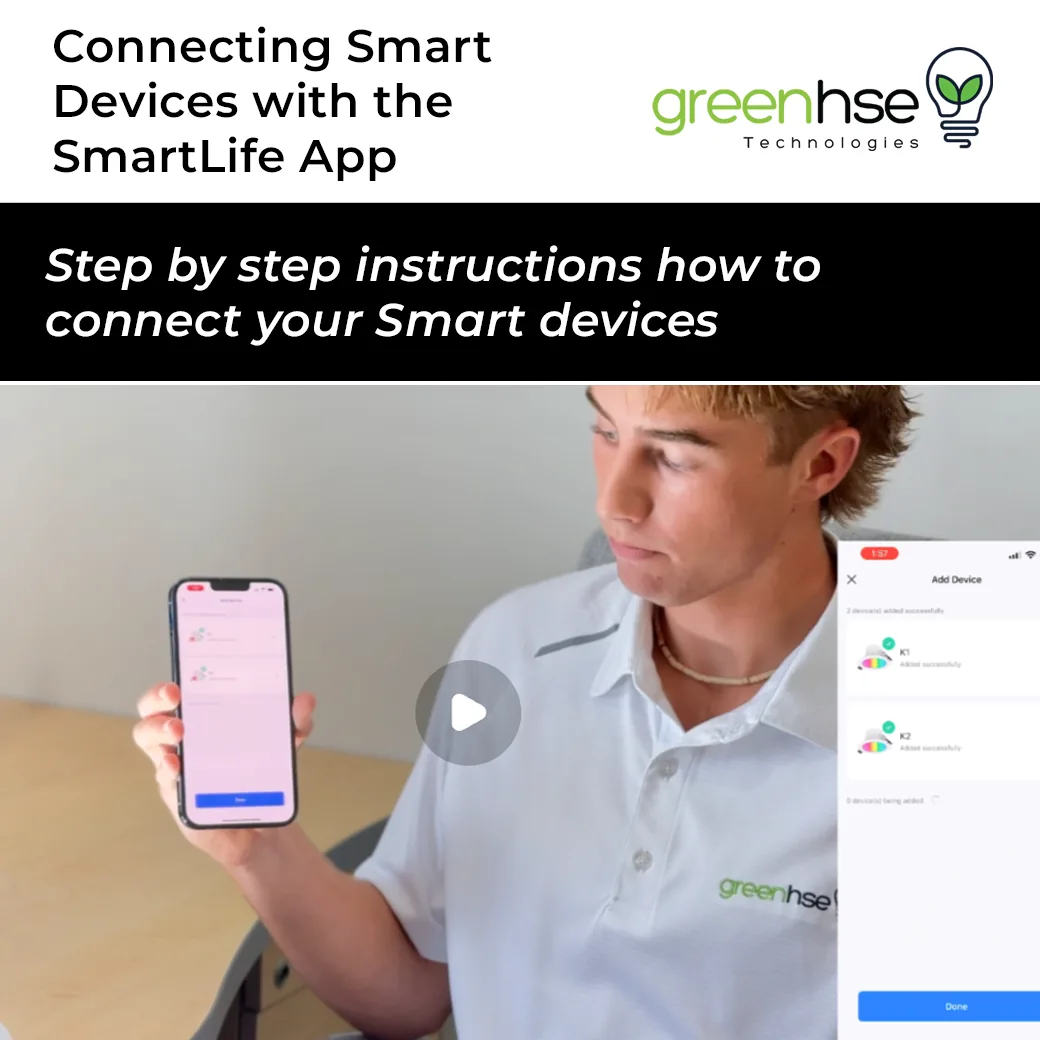
If you're new to smart home technology, watch our instructional video, Connecting Smart Devices using your SmartLife App, for a step-by-step tutorial. It provides a simple and easy-to-follow process, helping you pair your Wi-Fi-enabled smart bulbs, plugs, switches and other IoT devices with the Smart Life App. The written steps below follow the same order as the video.
- Install the app and create an account. Download Smart Life from the App Store or Google Play, open it, and register with your email address or phone number. Choose Australia as your region so the app connects to the correct server.
- Connect your phone to 2.4GHz Wi-Fi. Most smart lighting devices only communicate on the 2.4GHz band. If your router broadcasts a combined 2.4GHz and 5GHz network, connect your phone to the 2.4GHz network for the duration of the pairing process.
- Power the device and put it in pairing mode. Have your electrician install and power up the light or switch first. A new device normally enters pairing mode automatically and the light blinks quickly. If it does not, switch the light off and on three times at the wall switch to reset it, then wait for the fast blink.
- Add the device in the app. Tap the plus symbol in the top right corner of the home screen and choose Add Device. The app will scan for nearby devices in pairing mode and list them; for a Bluetooth device, make sure Bluetooth is enabled on your phone.
- Enter your Wi-Fi details. Confirm the 2.4GHz network name and type in the password carefully. The app sends these details to the device so it can join your network on its own.
- Wait for confirmation and name the device. When the app reports Added successfully, give the device a clear name such as Kitchen Downlights or Bedside Lamp and assign it to a room. In the video you can see two devices, K1 and K2, added in one session.
- Test it. Tap the device tile and switch it on and off, dim it, and change colour temperature if the fitting supports it. Then tap Done.
Stand close to the device with the phone for the first pairing. Once the device is on your network you can control it from any distance.
Why use the Smart Life App?
- Easy setup: a quick and straightforward pairing process, with the same steps for every compatible product.
- Voice control: compatible with Amazon Alexa and Google Assistant, so lights can be switched, dimmed and grouped by voice once the accounts are linked.
- Remote access: control your devices from anywhere with an internet connection, whether you are at work or on holiday.
- Automation and scheduling: set timers and routines for smart living, such as outdoor lights that switch on at sunset or bedroom lights that dim gradually at night.
Troubleshooting common pairing problems
- The device is not found. Check the light is blinking quickly, and that your phone is on the 2.4GHz network with location permission granted to the app.
- Pairing times out. Re-enter the Wi-Fi password, move closer to the router, and reset the device by switching it off and on three times.
- Several devices to add. Put all of them into pairing mode together and the app will find and add them in one batch, as shown in the video.
- Weak signal in part of the house. A Wi-Fi extender or mesh access point will give lights at the far end of the home a stable connection.
Following the video steps, you can effortlessly integrate your smart home devices and enjoy a more convenient lifestyle. Any hard-wired lights and switches must be installed by a licensed electrician; once they are powered, the pairing itself is something any homeowner can do. If you need help choosing compatible products or want to see the Smart Life App working on real fittings, visit Greenhse Technologies in Perth at 5/1 Locke Lane, Ellenbrook WA 6069 or call (08) 9297 2969 to start your smart home journey today.
Shop the range