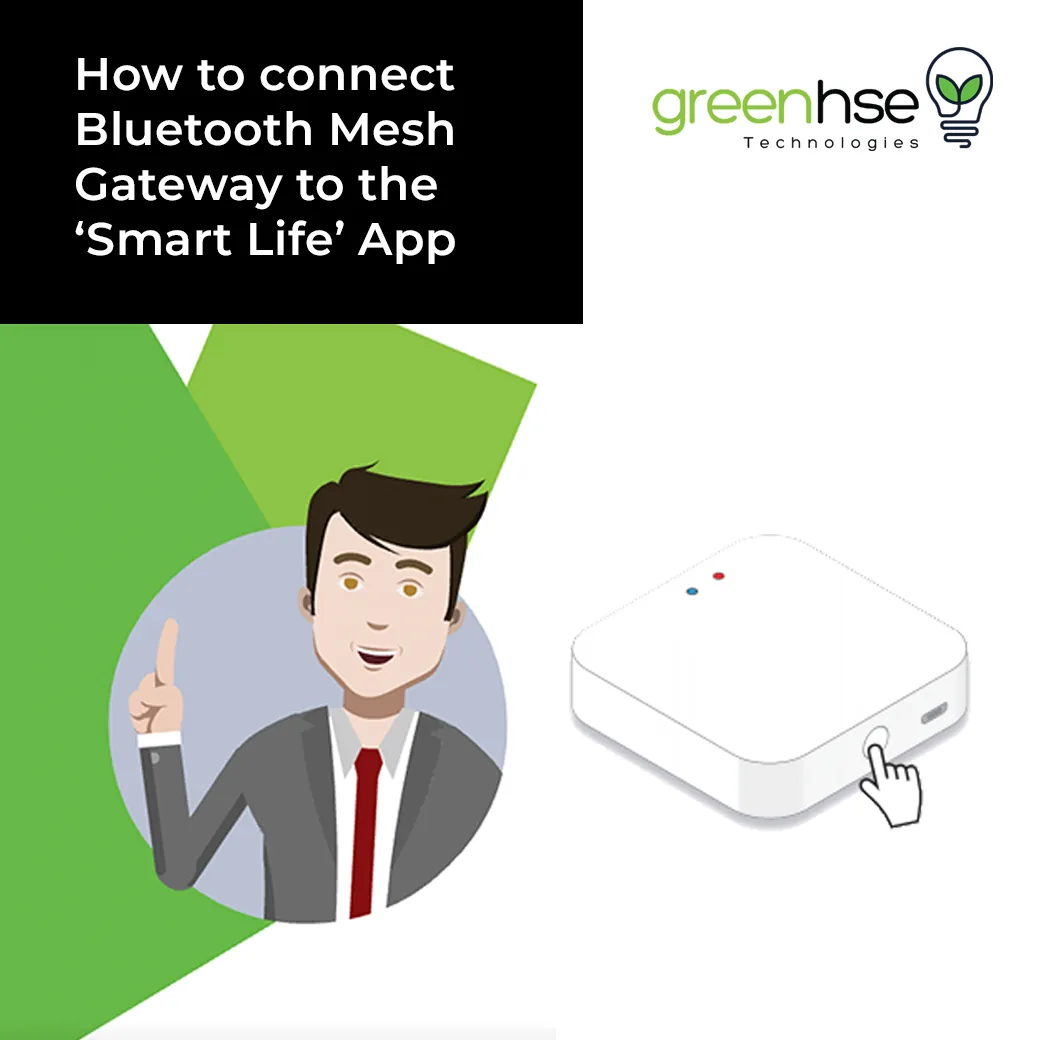
Have you seen trouble while adding a Bluetooth Gateway smart light connection? Many Perth customers buy Bluetooth smart lights, switches or garden controllers, then find that the lights only work while their phone is in the room. The missing piece is a Bluetooth Mesh Gateway. This guide explains what the gateway does, why you need one, and the step-by-step process of connecting your Bluetooth Mesh Gateway to the Smart Life app. We also have a short video that walks through the same steps.
What a Bluetooth Mesh Gateway does
Bluetooth smart devices talk directly to your phone over a short range. That is fine for a single lamp, but it has limits: your phone has to be nearby, and there is no way to reach the device from outside the house. A Bluetooth Mesh Gateway solves this. It is a small, low-power hub that sits between your Bluetooth devices and your WiFi router, giving them a path to the internet.
Once the gateway is set up, your Tuya and Smart Life Bluetooth devices gain the same features as WiFi devices:
- Remote control from anywhere with mobile data.
- Schedules and timers that run even when your phone is switched off.
- Voice control through Amazon Alexa and Google Home.
- Automations that link Bluetooth lights to other smart devices in the app.
The word "mesh" matters too. In a Bluetooth mesh network every device passes messages on to its neighbours, so the signal hops from light to light rather than relying on one central point. Multiple mesh nodes work at the same time, giving wide coverage and strong resistance to interference. The more mesh lights you have, the stronger the network becomes.
What you need before you start
- The Bluetooth Mesh Gateway and its USB power lead and plug.
- A 2.4GHz WiFi network. Most smart home gateways do not connect to 5GHz bands, so if your router combines both under one name, connect your phone to the 2.4GHz network first or split the bands in your router settings.
- Your WiFi password.
- The Smart Life app installed on your phone, with an account created and logged in. The Tuya Smart app works in exactly the same way.
- Bluetooth and location permission turned on for the app. Android and iOS both require location access to scan for nearby Bluetooth devices.
Choose a central spot for the gateway, within WiFi range of your router and Bluetooth range of at least one smart device. A hallway or living area usually works well.
Step-by-step: adding the gateway in the Smart Life app
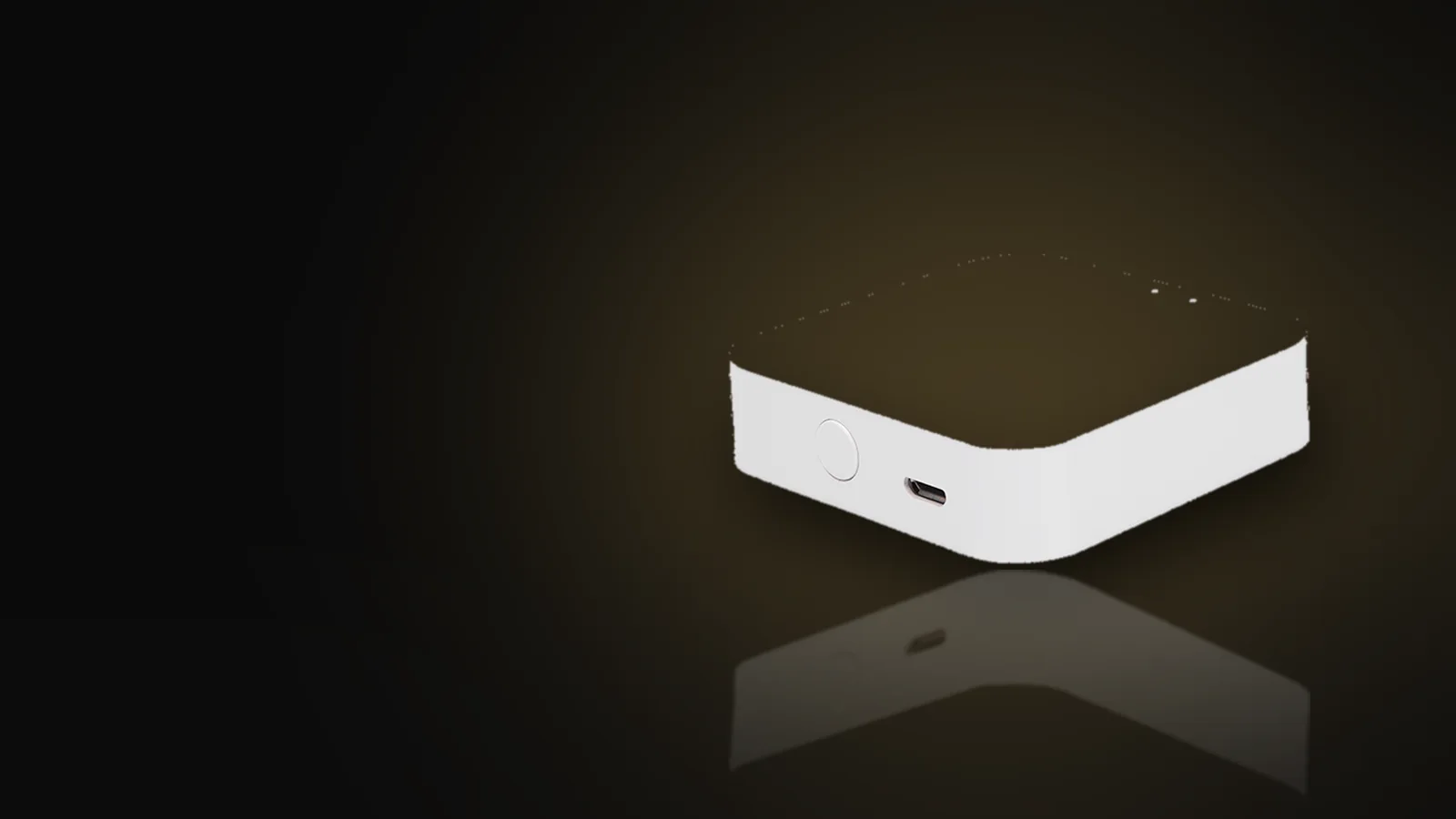
- Plug the gateway in. The indicator lights on the top of the unit will come on. Wait a few seconds for it to boot.
- Put the gateway into pairing mode. Press and hold the small button on the side of the unit for about five seconds until the indicator starts flashing quickly. A rapid flash means the gateway is ready to be discovered. If it flashes slowly, press and hold again until it changes to a fast flash.
- Open the Smart Life app and tap the plus symbol in the top right corner, then choose Add Device.
- The app will usually find the gateway automatically and show it at the top of the screen under devices to be added. Tap Add. If it does not appear, select Gateway Control from the category list on the left and choose the Bluetooth Gateway option.
- Select your 2.4GHz WiFi network, enter the password and confirm.
- Wait while the app connects. The progress bar will move through three stages: finding the device, registering it to the cloud and initialising. This normally takes under a minute.
- When the gateway appears as Added Successfully, give it a sensible name such as Downstairs Gateway and choose the room it lives in. Tap Done.
Prefer to see it done on screen? Watch the connection video at the top of this post, which follows exactly the same sequence.
Adding Bluetooth lights and devices to the gateway
With the gateway online, your Bluetooth devices can be linked to it in two ways.
- New devices: open the gateway in the app, tap Add Sub-device, then put the light or switch into pairing mode (usually by switching it on and off three times, or holding its reset button). The gateway will search, find and add it.
- Devices already in the app: Bluetooth devices that were added directly to your phone are usually migrated to the gateway automatically once both are in the same home in the app. If one is not, remove it and add it again through the gateway.
Sub-devices connected through the gateway can be grouped, scheduled and added to scenes like any WiFi device, and respond to Alexa and Google voice commands once your Smart Life account is linked to that assistant.
Troubleshooting common problems
- Gateway not found: confirm your phone is on 2.4GHz WiFi with Bluetooth on, and that the indicator is flashing fast. Move the phone closer to the gateway during pairing.
- Stuck at registering to the cloud: the WiFi password was probably typed incorrectly, or the router is blocking new devices. Re-enter the password and check any MAC filtering or guest network limits.
- Devices drop offline: the gateway may be too far from the nearest mesh light. Move it closer, or add another mesh device between the two so the signal can hop across.
- Need to start again: hold the side button until the indicator flashes quickly. This resets the gateway so it can be paired afresh.
Getting help in Perth
A Bluetooth Mesh Gateway is a small addition that turns a handful of Bluetooth lights into a proper smart home system with remote access, scheduling and voice control. If you are still having trouble with your Bluetooth Gateway smart light connection, the team at Greenhse Technologies in Perth is happy to help. Visit the showroom at 5/1 Locke Lane, Ellenbrook WA 6069 or phone (08) 9297 2969.
Shop the range